
Change triggers work together with change notifications in PRTG to alert you when a sensor detects a change in the value or state it monitors. This article explains what change triggers and change notifications are, when to use them, and how to set them up correctly.
This article applies as of PRTG 26.1.118
Change triggers in PRTG
In PRTG, you can use notification triggers to receive notifications about changes in sensor values that do not necessarily result in a sensor status change. A change trigger is a notification trigger that sends a notification based on a trigger condition. A change trigger is a type of notification trigger that sends a notification when a defined trigger condition is met. Trigger conditions vary by sensor and typically activate when something that is being monitored changes, regardless of what the new value is or whether it crosses a threshold.
Change triggers are usually used in tandem with change notifications. A change notification in PRTG is a log entry in the sensor or device log with the status Notify.
Setting this up is a two-step process: enable Change Notifications in the sensor settings, then create a change trigger on the Notification Triggers tab of the sensor or its parent object.
When to use change triggers
Use change triggers in scenarios in which you cannot use more straightforward methods, such as state triggers and threshold triggers.
We recommend change triggers notifications when:
- You want to monitor changes that do not affect the sensor state.
- You cannot use limits because the value is not numeric or cannot be evaluated numerically. For example:
- Monitoring software or firmware version changes with the SNMP Custom String sensor or WMI Custom String sensor.
- Monitoring content changes on a webpage with the HTTP Advanced sensor. In this case, none of the sensor channels convey that the webpage has changed.
- There is no meaningful threshold that you can define because any change from the known baseline is significant.
Note that change triggers have the following disadvantages:
- No visual indication: When PRTG sends a notification based on a change trigger, the sensor state does not change.
- Easy to miss: Notifications sent by change triggers are sent via email or other notification methods and are recorded in the sensor logs, but they do not appear in dashboards or affect sensor downtime statistics.
- Less precise: Change triggers do not provide the granular control that limits or lookups offer.
When to use other options
We do not recommend using change triggers for:
- Numeric values (bandwidth, CPU load, temperature, etc.): Use limits or lookups and a state trigger instead.
- Sensor states changes: Use a state trigger instead. You might need to confirm that your sensor has an internal logic or limits or lookups configured that can trigger the sensor's state change.
- Specific value transitions: Use a threshold trigger or a speed trigger instead. However, be aware that these have similar disadvantage as change triggers: they do not affect the sensor state.
Which sensors support change triggers
Note that not all sensors support change triggers. For more information, see the Notification Triggers column in the PRTG Manual: List of Available Sensor Types.
Furthermore, each sensor has a specific trigger condition that can vary greatly depending on the sensor type. You can find the trigger condition specific to each sensor on the respective sensor page in the PRTG Manual and in the setting help text in the PRTG web interface. In both cases, the information is present in the description of the Change Notification setting.
Examples of some trigger conditions for different sensors:
- File sensor: a change in the checksum value that the sensor computes for the file with each sensor check
- Folder sensor: a change to the folder, such as new, deleted, or renamed files and files with new time stamps
- SNMP Custom String sensor: a change in the value returned by the OID
- HTTP Content sensor: a change in the result that the HTTP request returns or any change to the monitored webpage.
How to set up change triggers
To use change triggers, configure the typical notification settings first. Make sure that notification delivery method, the notification contacts, and the notification templates as described in the PRTG Manual: Notifications are to your specifications. Then enable change notifications. Finally, create change triggers on sensors that support them.
Enable change notifications in the sensor settings
- Open the sensor in PRTG and go to the Settings tab.
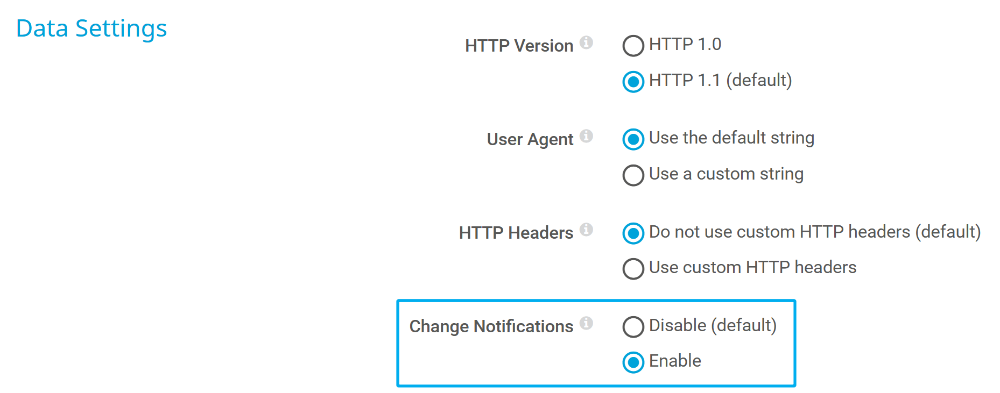
- Find the Change Notifications setting and enable it. The section name of the setting varies by sensor. Example: Change Notifications setting of the HTTP Advanced sensor.
- Save your changes.
With this configuration, you will see a log with the status "Notify" whenever the trigger condition is met.
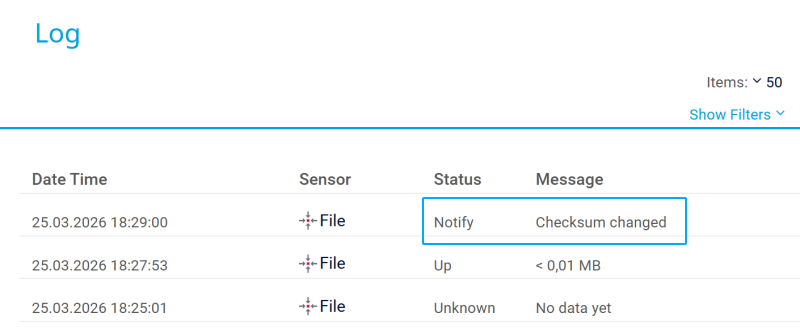
Be aware that PRTG does not automatically send an email, text, or other notification type if you only enable change notifications. If you want to receive other types of notifications than the log entry, set up a change trigger in the sensor or its parent object.
Add a change trigger on the Notification Triggers tab
You can define a change trigger for a specific sensor, or you can define it in the settings of objects that are higher in the object hierarchy. For more information, see the inheritance section in the PRTG Manual: Notification Triggers Settings. The following steps describe setting up a change trigger on the level of an individual sensor.
- Click the Notification Triggers tab of the sensor.
- Hover over
 and select Add Change Trigger from the menu to add a new change trigger, or click
  next to a change trigger to edit it.
 - In When a trigger condition is met, perform [...], select the notification template that you want to use.

- Save your changes.
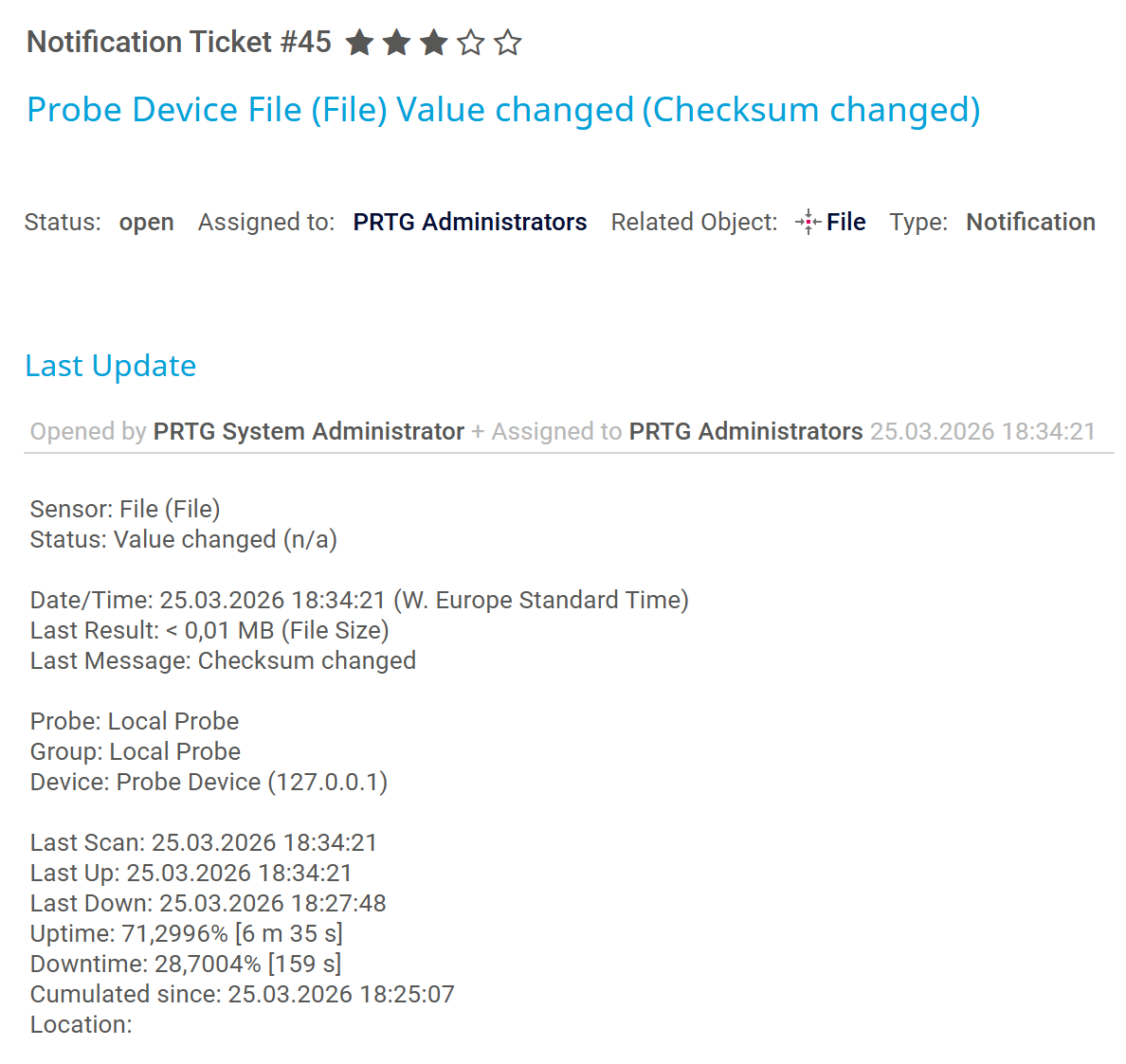
Now, when the trigger condition is met, PRTG also initiates the notification that you define in the change trigger. For example, if you choose to receive a ticket, a notification ticket appears on the Tickets tab when there is a change.
For more information, see the Change Triggers section in the PRTG Manual: Notification Triggers Settings.
