
How can I set up Slack notifications for UVexplorer?
To receive notifications from UVexplorer in Slack, you must configure both Slack and UVexplorer.
Step 1: Configure Slack
Sign in to Slack.
Go to the Slack apps page at https://api.slack.com/apps.
Click Create New App, and then select From scratch.
Enter a name for the app (for example, UVexplorer) and select the workspace to attach the app to. Select Create App.
Note: Each app can be associated with only one workspace, unless you set up OAuth 2.0 and redistribute the app. For multiple workspaces, create separate Slack apps.
Go to the app configuration page. Click Features in the sidebar,and then click Incoming Webhooks.
Enable Activate Incoming Webhooks.
Select Add New Webhook to Workspace. Select the channel to attach the webhook to, and then select Allow. Repeat this step for each additional notification channel.
On the Incoming Webhooks configuration page, copy the webhook URLs that you created.
Step 2: Configure UVexplorer
In UVexplorer, click Scheduled Discoveries, and go to the Events tab.
Enable Send Slack notification.
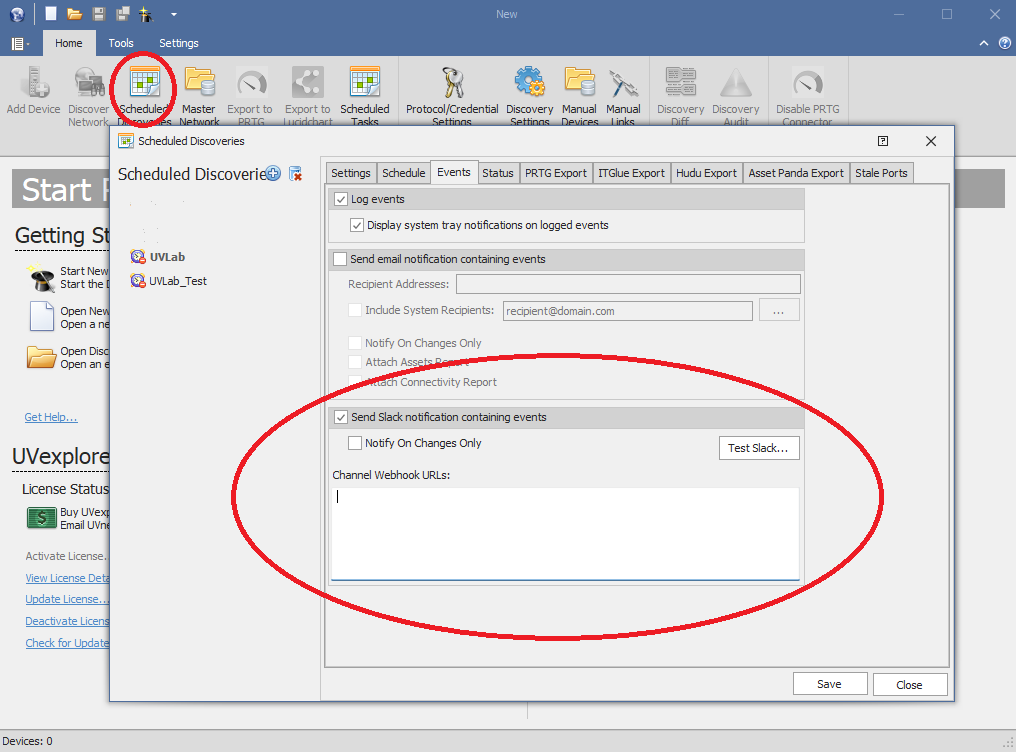
In the Channel Webhook URLs box, enter the webhook URLs you copied from Slack. Separate multiple URLs with commas, spaces, semicolons, or new lines.
Click Save.
Your scheduled discovery sends notifications to the saved webhook URLs.
