This article applies as of PRTG 26
Monitoring auto-discoveries in PRTG
You can use the Auto-Discovery feature in PRTG to discover devices in your network and create recommended sensors based on device templates. However, if you want to only create devices and sensors manually, you can disable auto-discovery across all devices.
We created a custom script that you can use with the EXE/Script sensor to monitor if there is a device or group in your PRTG with an active auto-discovery group.
How the script works
This script reads through the PRTG configuration file for devices and groups with an enabled auto-discovery.
We recommend that you set an upper error limit of 0 on the Value channel. This way, the sensor enters the Down status if an object has auto-discovery enabled.
Note: As the script checks the PRTG configuration file, it might take up to 10 minutes for the sensor to recognize a configuration change.
Step-by-step
- Copy the script below into a text file.
[string] $ConfigurationFilePath = ((Get-ItemProperty -Path "hklm:SOFTWARE\Wow6432Node\Paessler\PRTG Network Monitor\Server\Core" -Name "Datapath").DataPath) + "PRTG Configuration.dat"
[xml] $configuration = New-Object -TypeName XML;
$configuration.Load($ConfigurationFilePath)


[System.Collections.ArrayList]$ADEnabledGroups = @();
[System.Collections.ArrayList]$ADEnabledDevices = @();


$Groups = ($configuration.SelectNodes("//group"))
$Devices = ($configuration.SelectNodes("//device"))


foreach($Device in $Devices){
if($device.data.discoverytype.trim() -ne 0)
{ $ADEnabledDevices.Add($device.id); }
}


foreach($Group in $Groups){
if($group.data.discoverytype.trim() -ne 0)
{ $ADEnabledGroups.Add($group.id); }
}


if($ADEnabledDevices.Count -eq 0)
{ $DeviceMsg = "No devices with enabled auto-discovery found." }
else
{ $DeviceMsg = [string]::Format("Devices with enabled auto-discovery found: {0} ({1})",$ADEnabledDevices.Count,$ADEnabledDevices -join ", ") }


if($ADEnabledGroups.Count -eq 0)
{ $GroupMsg = "No groups with enabled auto-discovery found." }
else
{ $GroupMsg = [string]::Format("Groups with enabled auto-discovery found: {0} ({1})",$ADEnabledGroups.Count,$ADEnabledGroups -join ", ") }


$Msg = [string]::Format("{0} | {1}",$GroupMsg,$DeviceMsg);
$Count = $ADEnabledGroups.Count + $ADEnabledDevices.Count;


Write-Host ([string]::Format("{0}:{1}",$Count,$Msg))- Save the script as a powershell script. For example, find-autodiscoveries.ps1.
- Save the script in the custom scripts folder for the EXE/Script sensor in the PRTG program directory. The default path is C:\Program Files (x86)\PRTG Network Monitor\Custom Sensors\EXE.
- In the PRTG web interface, create a EXE/Script sensor on the local probe.
- Give the sensor a unique name.
- Select the script from the dropdown list.
- Save the sensor.
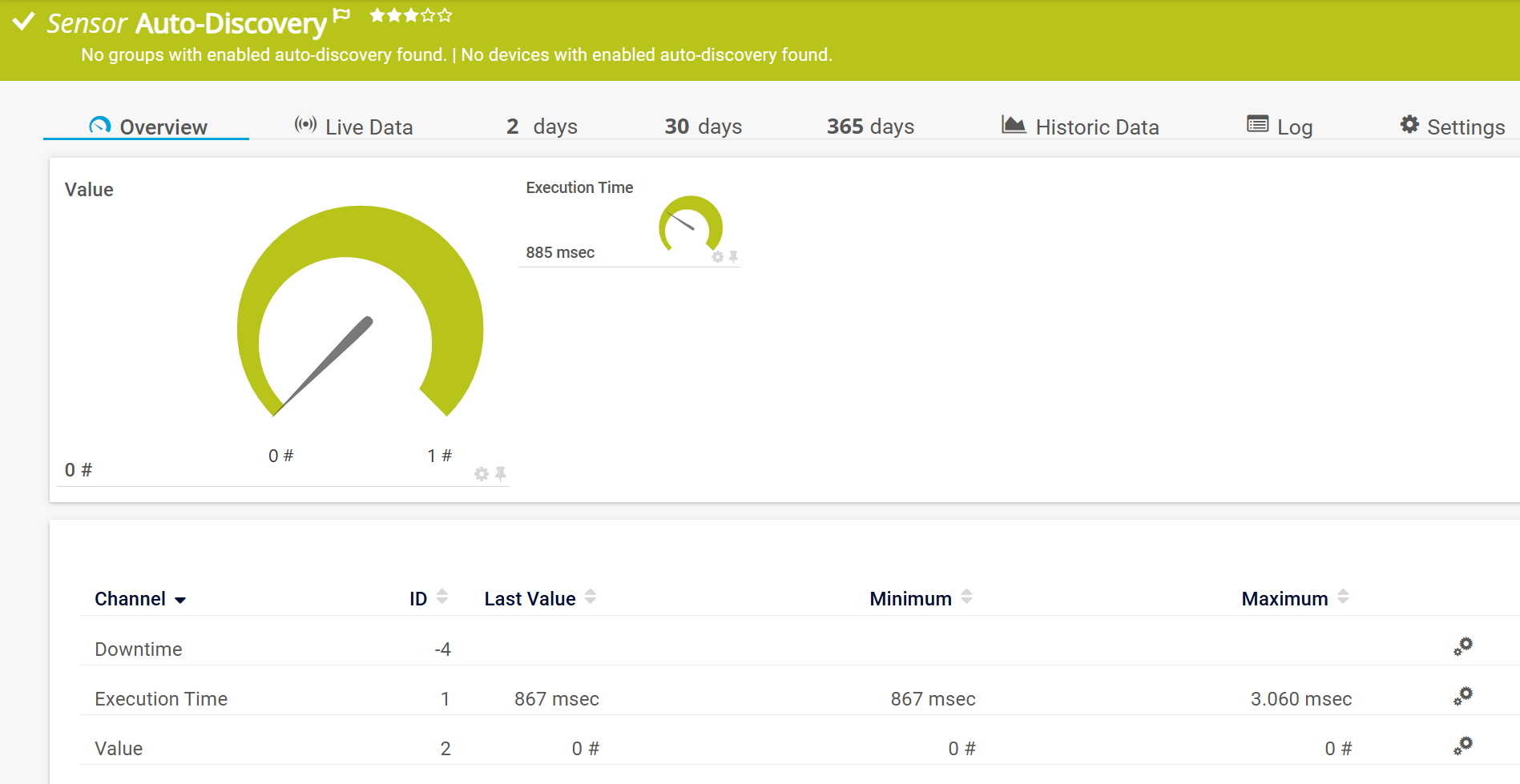
After the first scan, the sensor shows the Up status:
Additional Tips
- We recommend that you set the Value channel as the primary channel.
- Currently, the sensor never enters the Down status, even if it finds an object with enabled auto-discovery. To have the sensor alert you, set either the Upper Warning Limit or Upper Error Limit on the Value channel to 0.
The sensor gauge turns orange or red, respectively, but the sensor remains in the Up status.