Welcome Wizard Help—Step 2 (Commercial License Key)
Modified on 2025-06-10 11:29:51 +0200
Attention: This article is a record of a conversation with the Paessler support team. The information in this conversation is not updated to preserve the historical record. As a result, some of the information or recommendations in this conversation might be out of date.
Important: We no longer maintain this article. The information might be out of date.
Can you please offer help for the PRTG setup wizard Commercial License Key screen?
- Where do I get my license key from?
- What do I have to enter in this screen?
Article Comments
This article applies to PRTG Network Monitor 8
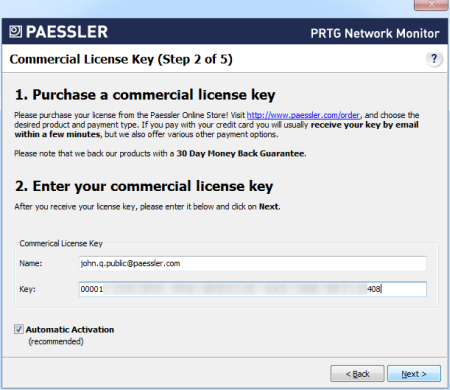
Welcome Wizard Help—Commercial License Key (Step 2 of 5)
In order to run a commercial edition of PRTG, you need a commercial license key. Please visit Paessler's online shop to buy PRTG and enter the license key information into the respective fields.
1. Purchase a commercial license key
- If you have already purchased a commercial license, you can skip this step.
- Please visit the Paessler online store at https://www.paessler.com/order and chose the desired product and payment type. You will receive your license key via email—if you pay with credit card, usually within minutes.
- Your purchase is risk-free: Paessler offers you a 30 day money back guarantee in case you aren't fully satisfied with our product.
2. Enter your commercial license key
- You should have received your license key via email after your purchase. In order to re-send your license information, please log in to your Paessler customer account.
- Once you've received your license key, please enter name and key into the respective fields.
- Name and key have to be written exactly the way they are stated in the email; so we recommend using copy and paste.
- The Automatic Activation option will activate your product automatically via an existing Internet connection on first startup.
Go to Welcome Wizard Help—Step 2 (Invalid License Key)
Go to Welcome Wizard Help—Step 3
Jul, 2010 - Permalink
Disclaimer:
The information in the Paessler Knowledge Base comes without warranty of any kind. Use at your own risk. Before applying any instructions please exercise proper system administrator housekeeping. You must make sure that a proper backup of all your data is available.

This article applies to PRTG Network Monitor 8
Welcome Wizard Help—Commercial License Key (Step 2 of 5)
In order to run a commercial edition of PRTG, you need a commercial license key. Please visit Paessler's online shop to buy PRTG and enter the license key information into the respective fields.
1. Purchase a commercial license key
2. Enter your commercial license key
Go to Welcome Wizard Help—Step 2 (Invalid License Key)
Go to Welcome Wizard Help—Step 3
Jul, 2010 - Permalink